← Workshop
BKMAF Player Midi
User Guide
The bonus player included with any collection purchase: search across your titles, choose your sound bank, custom mixing, MP3 export and lyrics.
See the Library →Windows only · Nothing to install
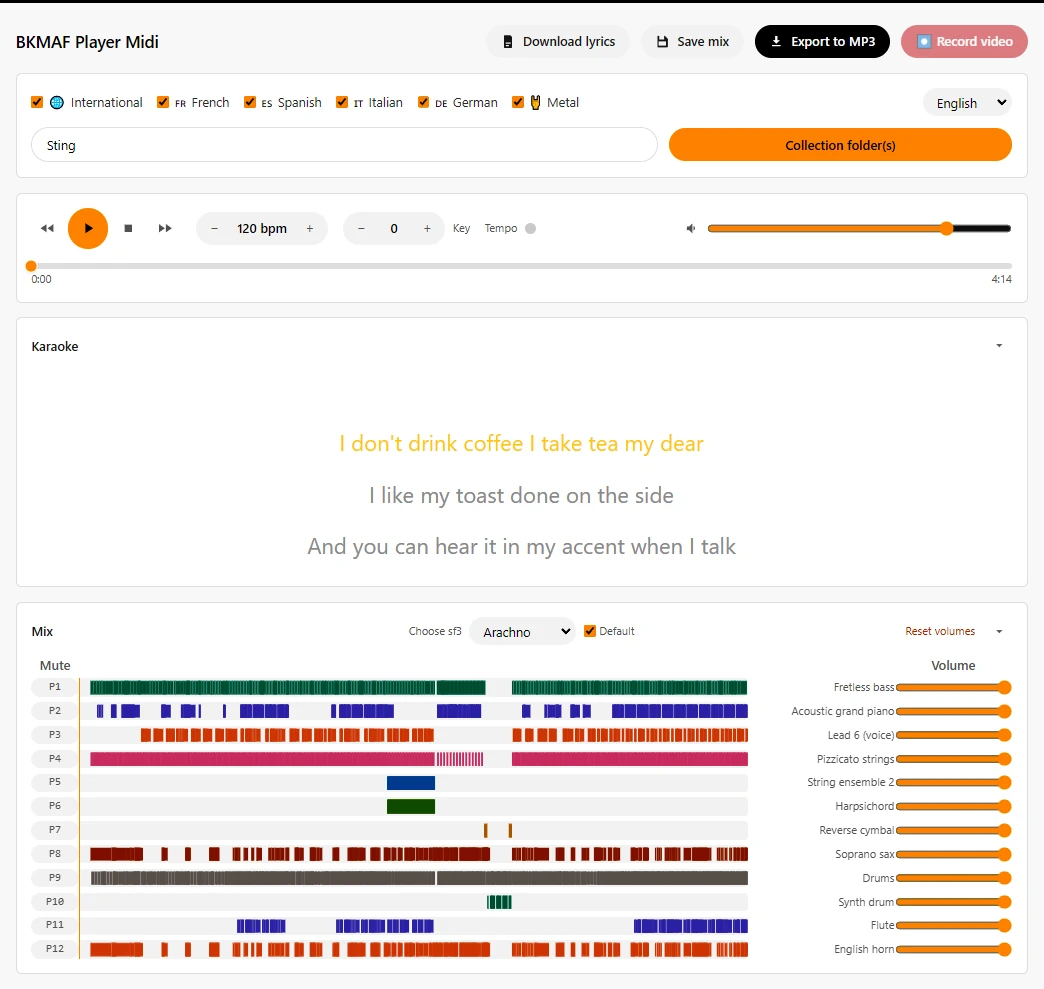
BKMAF Player Midi is included with any collection purchase.
Launch "BKMAF Player Midi.exe" in one click. Nothing gets installed on your machine. Here are the 5 main features that will help you get the most out of your collections.
⚠️ Windows only: BKMAF Player Midi is a .exe application, it only runs on Windows (no macOS or Linux version).
1. Search across your collections
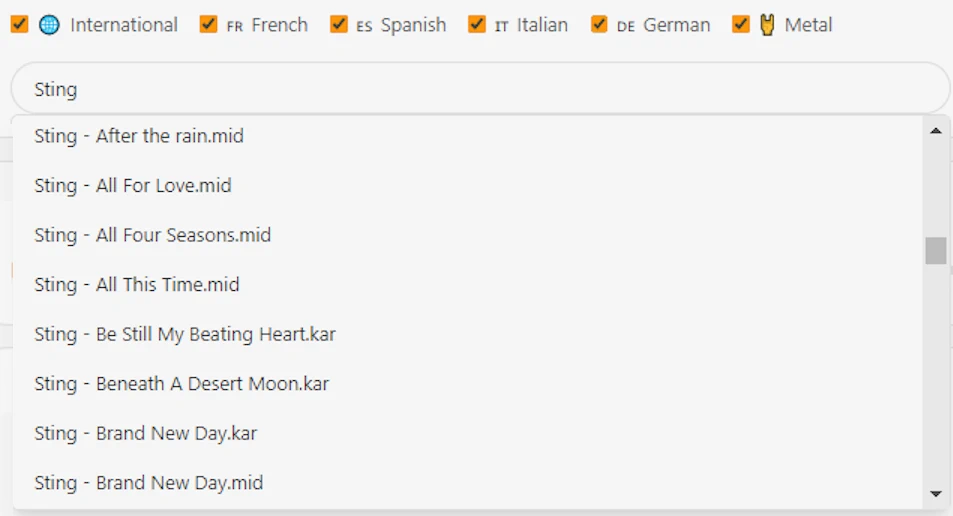
- Choose the folder containing your collection(s). It's saved automatically — no need to set it again each time you open the app
- Use the smart search bar to quickly find the title you're looking for across all your collections
- The last artist selected stays active in the search bar with all their titles selectable in one click.
- The French-speaking, International, Spanish, Italian, German, Metal filters narrow your search by collection, if you own more than one
💡 Tip: The filters let you quickly navigate several collections without mixing up the results.
2. Choose your instrument bank
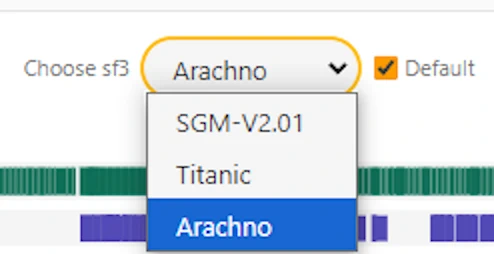
Pick the sound you like best among three complete instrument banks.
- In the Mix section, the "Choose sf3" menu offers three banks: SGM-V2.01, Titanic and Arachno
💡 Tip: Check "Default" next to the menu so your chosen bank reloads automatically every time you open the player.
3. Save a custom mix
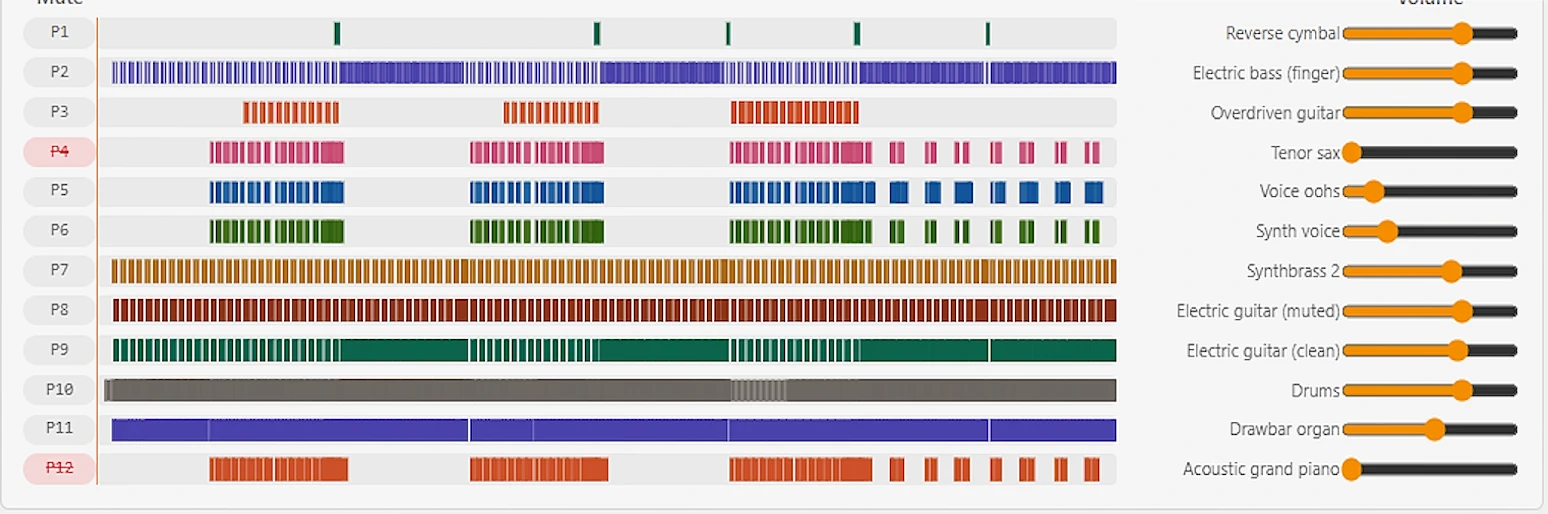
Create your own version of a song by adjusting the instruments however you like.
- In the Mix section, you'll see all the instruments (Accordion, Electric bass, Guitar, Flute, etc.)
- Use the volume sliders on the right to raise or lower each instrument, or mute on the left to turn off a track. Also adjust the pitch and tempo

- Click "Save mix" at the top right to save your version
- Your mix is saved automatically alongside the title using the pattern Artist - Title-ext-mix.json (example:
U2 - One-kar-mix.json) and will reappear the next time you play it
💡 Tip: Reset all volumes at once with the "Reset volumes" link at the bottom of the Mix section if you want to return to the default settings.
4. Export to MP3
Export the song (with or without your custom mix) as an MP3 file.
- Click the "Export to MP3" button at the top right
- The player records the full song exactly as it currently sounds (with your custom settings)
- An MP3 file is created and saved to the folder of your choice
📌 Good to know: The compressed SoundFont instruments (sf3) give a high-quality sound. The extracted MP3 is rendered in under a minute with no loss of quality.
5. Export the lyrics
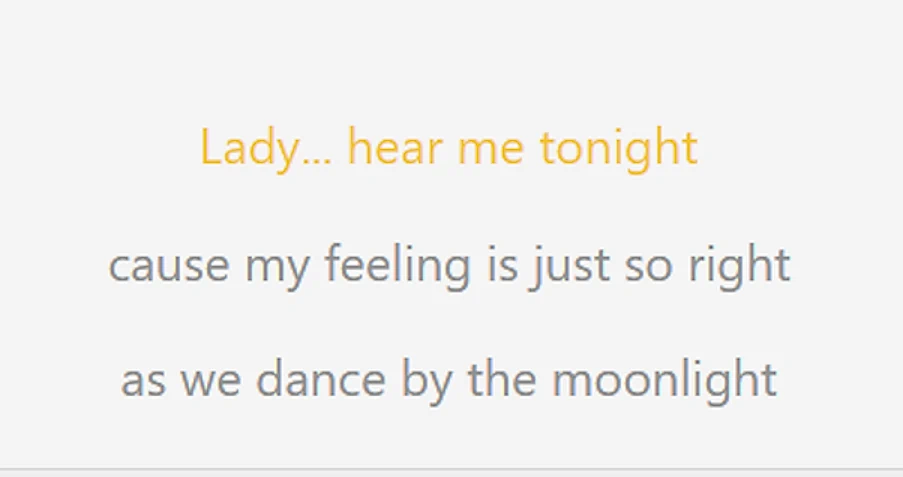
Get the song's lyrics as a text file.
- At the bottom right of the Karaoke section, click the "Download lyrics (.txt)" link
- A text file containing the lyrics is created and saved to the folder of your choice
💡 Tip: Handy for printing the lyrics, editing them, or using them with other tools.