 VanBasco's Karaoke Player
Free download
The most popular MIDI/Kar karaoke player for 25 years, now hard to find reliably elsewhere — hosted here, verified, virus-free.
Download VanBasco's Karaoke Player →Free · No sign-up · No email required
Beware of fake sites. The original official site (vanbasco.com) has been gone for years. Other sites reuse the "vanbasco" name in their address (for example vanbasco.org) but never actually let you download the software — they redirect to external pages asking for your email or leading to phishing. The only reliable download is the one offered directly on this page.
VanBasco Karaoke Player is a Kar and Midi file player that's easy to install and run. This simple-looking software turns any PC into a karaoke machine. This page brings together the download, a window-by-window usage guide, and solutions to the most common problems.
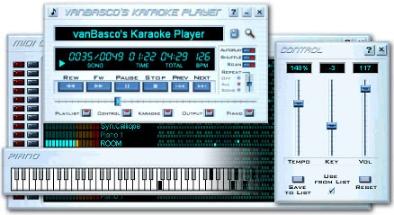
Installation
The software is a simple Windows executable (.exe), a standard install in a few clicks — no particular configuration is needed on first launch.
Since the software hasn't been updated in a long time, Windows may show a SmartScreen warning ("Windows protected your PC") on first launch — this is an automatic check tied to the file's age and low current distribution, not a sign of danger in itself. Click "More info" then "Run anyway" if you trust the source.
Usage guide, window by window
The main window
The program's main window looks like a tape recorder or cassette player. It's the starting point for accessing all the other windows.
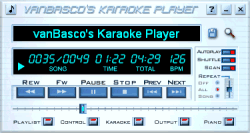
- The buttons at the bottom: "Karaoke" opens the window that shows scrolling lyrics.
- The "Output" button opens the control window.
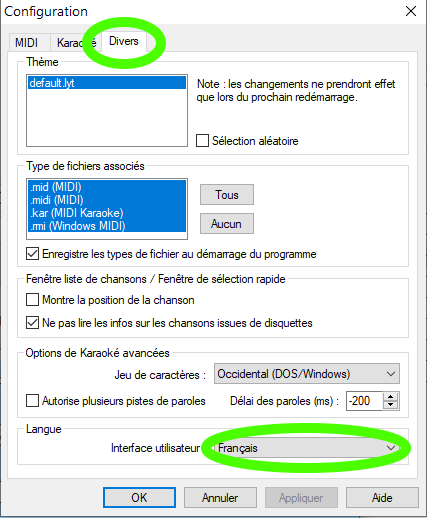
- The small note icon top left opens the settings — this is where you change the language.
On first launch, the software often opens all its windows at once. You can close them all except this one.
The karaoke window
It normally appears as soon as a file containing lyrics starts playing.

You can easily resize it by dragging a corner with the mouse, or display it fullscreen.
- Right-clicking it lets you copy the lyrics to paste elsewhere.
- "Options" opens the text display settings: font, colors, number of lines, and many other customizable options.
The control window
It lets you adjust the pitch, tempo, and volume of the track.
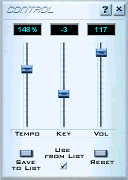
By checking "Use from list", these settings are saved in the playlist for each song: the next time it's loaded from the playlist, they'll be applied automatically.
The Midi-Output window
It displays the 16 MIDI channels and the instruments assigned to them.
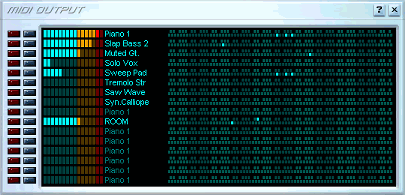
The MIDI standard reserves certain channels: percussion and drums are channel 10, the melody is channel 4 (the channel karaoke software normally mutes — though not always).
Since singing over a track with a duplicate melody is awkward, this window lets you manually mute the channel carrying it, using the red button on its row. The black button, meanwhile, isolates a track (solo) by muting all others — handy for locating the melody track before muting it.
The piano window
It shows the notes being played in real time. When a track has been soloed in Midi-Output, only that track's notes are shown.

The playlist window
Here you create and edit playlists made up of individual songs — as many playlists as you like, each with an unlimited number of tracks.
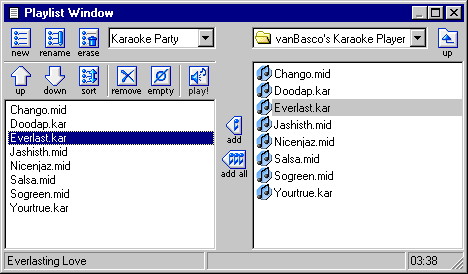
The small window top right shows a folder's contents: the "add" arrow adds the selected tracks to the playlist on the left. Top left, you name, rename, or delete a playlist; the arrows below move the selected track within the list.
Changing the software's language
Frequently asked questions
No sound comes out of the player +
First check that the correct output device is selected in the Midi-Output window (see the guide above). If sound is still missing or very poor despite a correct output, it's often Windows' default MIDI driver at fault — a dedicated sound bank like Titanic, combined with VirtualMIDISynth, almost always fixes the problem (see "Go further" below).
The file won't open or causes an error +
Some very old .kar files use non-standard character encoding, which can display lyrics with broken accented characters — the file is still readable and playable, only the text display is affected. If the file refuses to launch at all, it's probably corrupted or truncated rather than a problem with the software itself.
How to mute the vocals/melody to sing over the track +
In the Midi-Output window, mute the channel carrying the melody (often channel 4, but not always) using the red button on its row — see step 4 of the guide above.
Does VanBasco work on Mac? +
No, it's Windows-only software. On Mac, you'll need a Windows emulator (such as Wine/CrossOver) or a native macOS player compatible with .kar/.mid files.