 MIDI Voyager Pro
User Guide
Turn an Android tablet or phone into a portable karaoke machine — SoundFont support, scrolling lyrics, and easy casting to a TV over an HDMI dongle.
Download MIDI Voyager →Android · Free
Most Android MIDI players stop at playback. MIDI Voyager Pro goes further: its developer built a genuinely full-featured MIDI app first, then added MIDI Karaoke (.kar) support on top — which makes it one of the few tablet apps that can properly replace a computer for karaoke night.
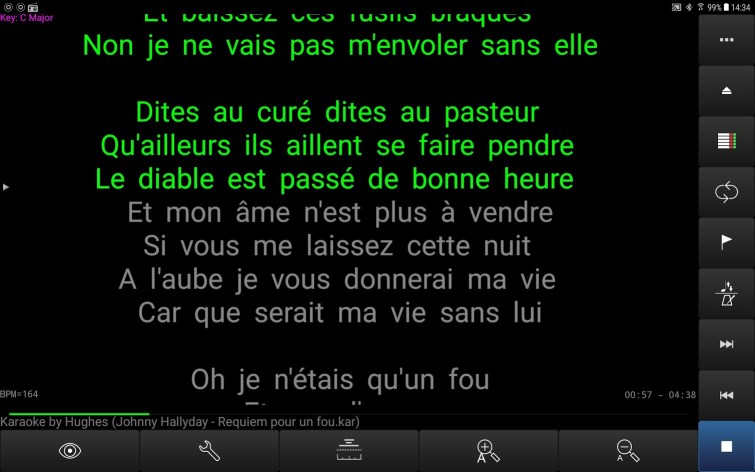
The interface is English-only, but intuitive enough once you know where to look — this guide covers the essentials. It's happiest on a tablet, given the screen real estate it likes to use. Two things make it particularly good for karaoke: full SoundFont management (so you're not stuck with a thin default sound) and a properly built-out scrolling lyrics display.
The toolbar
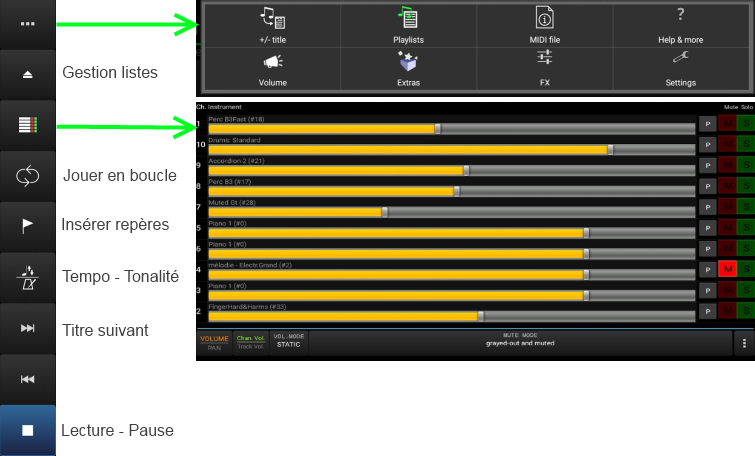
Top to bottom, the vertical bar gives you:
- Menu and settings
- Playlist manager
- MIDI instrument channels (mixer)
- Saved loops
- Markers, including loop-capable ones
- Tempo and transpose
- Fast-forward / rewind
- The main Play / Pause button
Building playlists from your collection
If you've copied a Midi Karaoke collection onto the device's storage, this is where you turn it into a night's worth of songs. Pick an artist to see their available titles, tick the ones you want, then just go back with the device's back button — there's no explicit "confirm" step, the selected titles simply appear in the playlist.
Getting a good sound: SoundFonts
Sound comes from a SoundFont bank, and banks are swappable — this is the single setting most worth getting right before anything else. The Titanic bank, available elsewhere on this Workshop page, is a solid match: unzip it and copy it onto the tablet's SD card.
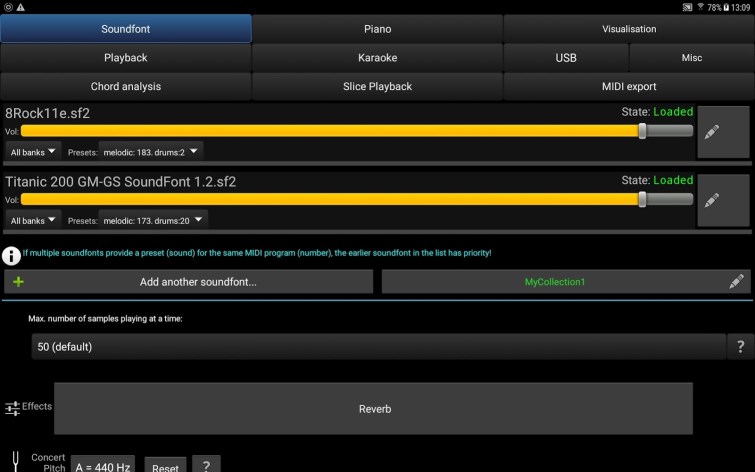
To load it, go to Settings > Soundfont. The line reading "8Rock11e.sf2" is the bank that ships with the app by default. The green plus button lets you add a new bank from the SD card — you can then remove the original.
Only the top bank in the list is actually active. The "Reverb" button opens the effects window (reverb, chorus).
The karaoke display
This is where you tune how the scrolling lyrics look on screen — the defaults work fine for most files.
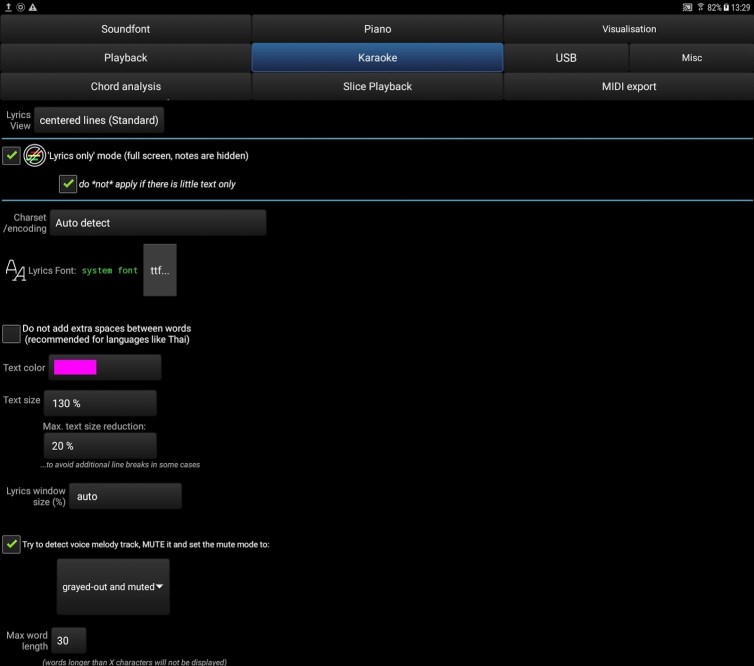
Beyond text color, size can be bumped up via "Text size". The "Try to detect voice melody track..." option automatically silences the track carrying the melody — pick "grayed-out and muted" to gray it out and cut it in one go.
A few more screens worth knowing about
Because MIDI Voyager is a MIDI-editing app first and a karaoke app second, it also ships with tools for tweaking a track and saving your changes — none of them essential for a first karaoke session, but handy once you want more control.
Piano view
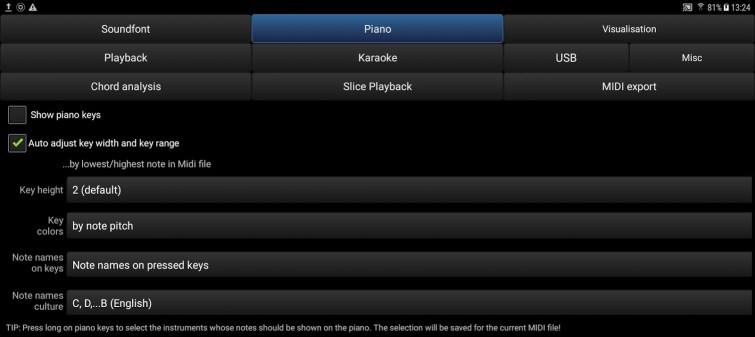
Tick "Show piano keys" to display a piano whose keys light up as notes play.
Visualization
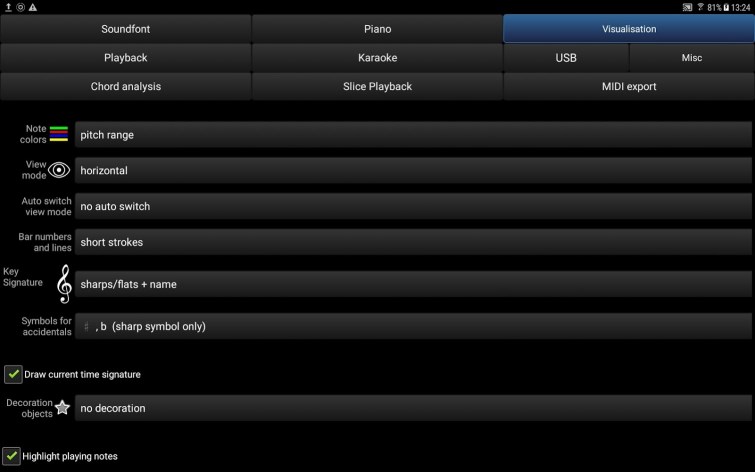
Controls how scrolling notes are drawn. "View mode" includes a genuinely fun 3D option.
Playback
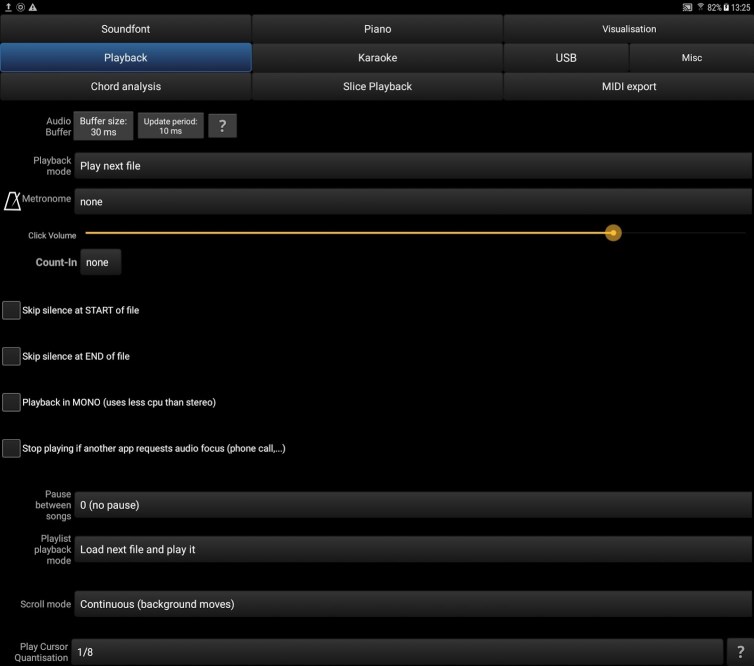
Turn on and tune the metronome here.
USB
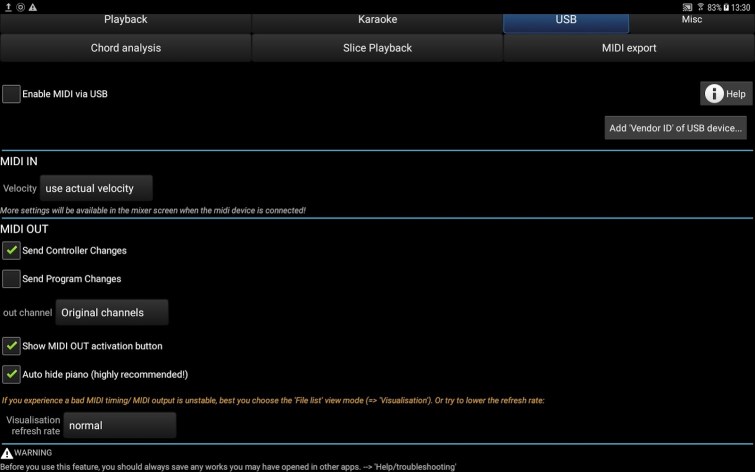
With the right cable (USB to two MIDI leads, IN and OUT), you can hook the tablet up to another MIDI instrument and manage the data exchange here. Watch out for a MIDI feedback loop if the output ever feeds back into the input — a crash is more or less guaranteed.
MIDI Voyager Pro (~€5, unlocks the advanced settings covered in the full reference) is no longer officially distributed — it was pulled from the Google Play Store on 2024-04-24. We don't provide a download link for it: copies circulating elsewhere come from unofficial sources and are best avoided.
The free version is still fully functional and is all you need to follow this guide (the Pro version only adds the advanced options covered in the full reference below).
Download MIDI Voyager (free, .apk) →